
Three NEW features for LinkedIn ProfilesOn LinkedIn, your posts and connections are the main ways to get noticed on the professional social media platform. However, LinkedIn recently unveiled three new features on its website that can help you enjoy more relevance on the platform. List Your Services Based on LocationFollowing the introduction of this new feature, LinkedIn users can now filter search results based on the location of the service provider. LinkedIn advises users to enable the “showcase services you offer” option on their profile to be visible in searches and to also highlight such services as open for business. Additionally, you can also indicate where exactly you offer these services and if you are willing to work remotely. LinkedIn is promoting this feature as another way for freelancers and businesses to get new clients. Participate in a LinkedIn Skill TestLinkedIn is introducing a new feature called a “Skill Assessment” feature. This feature allows users to take a test in a particular skill and earn a badge if they prove their proficiency. The test is usually comprised of 15-20 questions based on the skill being tested, and questions have to be answered in a specific time. Currently, there is a limited list of skills that users can earn badges in, and most of them are based on popular business software like Adobe Acrobat, Microsoft Excel, Microsoft PowerPoint, and Microsoft Project. Users can also get proficiency badges in AutoCAD, JavaScript, AWS, C++, XML, Hadoop, Ruby, AWS, HTML, and the likes. LinkedIn has indicated a willingness to expand this list in the future. Note that not all LinkedIn users can access the Skill Assessment feature yet. Take Advantage of LinkedIn’s New Event FeaturePromoting events throught the Event Feature can be a practical method of fostering communication in your network. For instance, you can use the event feed to communicate with attendees, and also ask attendees to connect with you on LinkedIn. Again, attendees to your event can now send invitations (if granted access) which can grow your network. Any user can join events, but not all users can create one yet. Three exciting NEW features for LinkedIn PagesThe three new features being added to LinkedIn Pages are geared at fostering stronger relationships amongst followers and increasing community engagement. According to the professional social media platform, more than 50 million companies now use Pages globally, and LinkedIn will regularly update features quarterly. Some of the most recent updates include “LinkedIn Live” integration, “Invite To Follow”, and new “posting options”. Invite to followTo enhance the growth of their following, Page managers can invite top profile connections to follow their Page. Moreover, users that would not like to receive such invites can opt-out from them. Stream with LinkedIn LivePreviously reserved for only personal profiles, LinkedIn Pages can now enjoy the live broadcast and streaming feature. LinkedIn believes that this feature can generate more than 24X more comments and 7X more reactions than conventional video posts. To enable this feature, Page managers will need to request access to use this feature via the LinkedIn Live website. Post as a Member or PageUsers can now use a toggle switch on their Home page to switch between posting content as an organization or individual. In the past, users had to separately access their Page to publish under it. Currently, users can manage and publish posts from the same dashboard.
AuthorMandy Fard is a Certified Professional Resume Writer (CPRW, CMRW) and Recruiter with decades of experience in assisting job seekers, working directly with employers in multiple industries, and writing proven-effective resumes. 
How to optimize your LinkedIn profile in 2020 - Posted by https://www.market-connections.net
Optimize your LinkedIn profile - 2020
Almost 95% of recruiters use LinkedIn to search for candidates, but most job seekers are overlooking this valuable opportunity.
If you’re like many professionals, you probably created a profile and occasionally go back to add more connections. However, there is so much more you can do with this platform to advance your career. Tips to optimize and design your LinkedIn profile
Take charge of your future and attract more attention from potential employers. Try these tips for designing and using your LinkedIn profile.
Designing your LinkedIn Profile:
Using your LinkedIn Profile:
Optimize your LinkedIn profile and increase your visibility. It can make it easier for others to find you and help you reach your professional goals. AuthorMandy Fard is a Certified Professional Resume Writer (CPRW, CMRW) and Recruiter with decades of experience in assisting job seekers, working directly with employers in multiple industries, and writing proven-effective resumes. 
LinkedIn Career Advice by www.market-connections.net
LinkedIn TrainingHow to use LinkedIn to connect to jobs1.- Build a profile and follow LinkedIn's tools and guidelines carefully as you go along. 2.- Optimize your LinkedIn profile for job search and to attract employers. 3.- Learn how to build a LinkedIn network that can open doors and connect to jobs. 4.- Search and apply for a job on LinkedIn. 5.- Access additional job search and career advancement resources on LinkedIn. 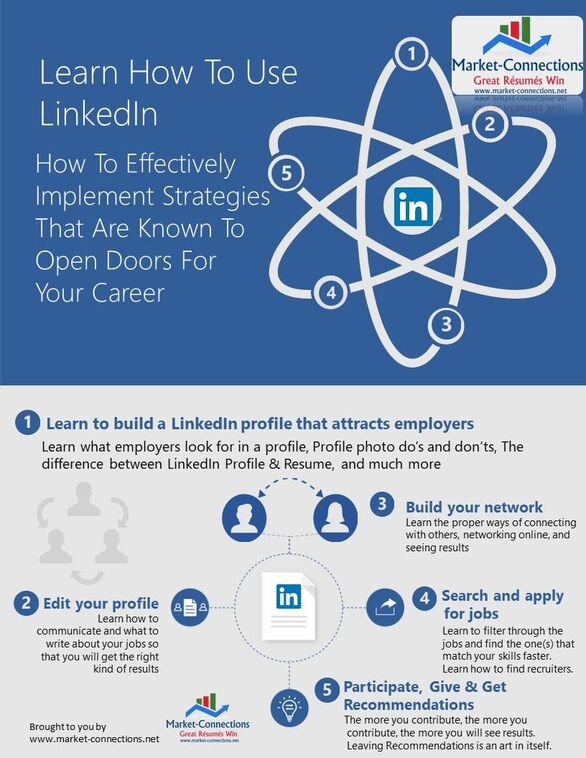 Learn How To Use LinkedIn by www.market-connections.net 
Expert LinkedIn Advice
What to avoid on LinkedInLinkedIn Etiquette Guide
Things you should not do on LinkedIn:

How to write a LinkedIn Summary
Writing a LinkedIn Summary
LinkedIn Summary Help
The “Summary” section of your LinkedIn profile is a vital part of your LinkedIn presence. Knowing how to write a good LinkedIn Summary will have a direct impact on whether or not a visitor will continue reading the rest of your profile. You have 2,000 characters to give readers a brief snapshot of who you are.
The first 2-3 sentences need to instantly get your prospects interested in your profile — or, even better, get them excited about reading the rest of your profile. How do you add more value to the company, or solve problems better than other job candidates? Your LinkedIn Summary can set you apart from other jobseekers on LinkedIn by demonstrating that you understand what employers want — and what you have to offer that meets that need. How to write a good LinkedIn SummaryLinkedIn Summary Examples
Use these ideas as examples of what to write in LinkedIn Summary:
Write naturally and conversationally. In contrast to your résumé, you should use pronouns in your Summary. Speak in the first person, not third person. (“I did such-and-such.”) Write as if you’re speaking to an individual reader. Make it personal. Be sure to emphasize outcomes — as well as what makes you uniquely qualified to do the job you do. Never loose sight of the fact that your resume and your Linked profile are not the same thing. There are many diferences when it comes to the use of a resume vs. LinkedIn profile. Unlike the rules of resume writing, please be conversational and informal in your tone when it comes to writing a LinkedIn Summary. Use contractions (“you’re” instead of “you are”). Every word counts! And pay attention to grammar and spelling. Make sure there are no mistakes in your profile. Re-read and edit it. Have a colleague, friend, or spouse read it. Copy-and-paste it into a word processing program and run a spell-check on it. You can also use asterisks, dashes, hyphens, and other keyboard characters to format the Summary and make it easier to read. Try to find a common THREAD through your work. Then, once you have a theme, use storytelling principles to write your Summary as a narrative. Have a beginning, a middle, and an end. 
LinkedIn Summary Character Limit
There is a limit of 2,000 characters (not words) to write in the Summary (About) section of your LinkedIn profile.
Your Summary can be anywhere from a few sentences up to a few paragraphs. But don’t waste any words — make the most dramatic, powerful, attention-getting statement you can. Don’t use any more words than is necessary, and don’t be overly flowery in your language. The point of the first sentence is to get the prospect to read the second sentence. And the next sentence. And the next. On LinkedIn, a 'character' can be a letter, number, space, and punctuation. The current LinkedIn set up and design of a profile only shows the first two lines of your Summary or About section to the reader. The reader will then have to click on SEE MORE to see the rest. So, the two-liner opening is only about 200-250 characters (or about 25-42 words). Make sure you use these words to write a compelling opening . 
"Best time to find a job" posted by www.market-connections.net
Best time for job hunting October is the best time to look for a job, based on a LinkedIn survey. October is the best time to look for a job, based on a LinkedIn survey. The CBS This Morning show invited Dan Roth, the Editor in Chief of LinkedIn, where it was explained that with the national unemployment rate at a 50-year low, October could be the perfect time to land your dream job — and Monday the best day to apply for a job, based on a recent LinkedIn survey. 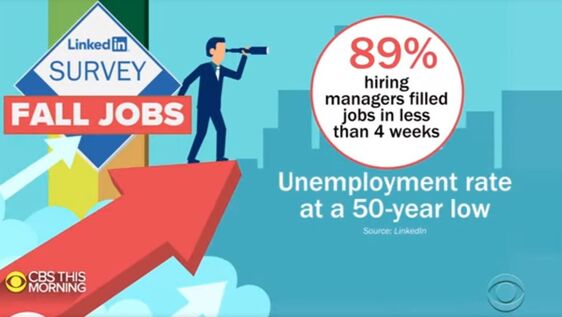 October has the HIGHEST number of job openings on LinkedIn October has the HIGHEST number of job openings on LinkedIn October has the highest number of job openings on LinkedIn, and 89% of hiring managers filled those spots in less than four weeks. 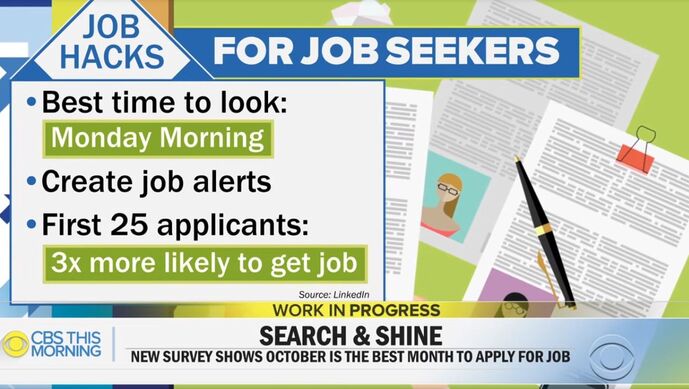 Monday morning is the best time to look for work Monday morning is the best time to look for work Roth said it's good to have your application be first in line because the first 25 applications are three times more likely to land a position (compared to those later in the queue). 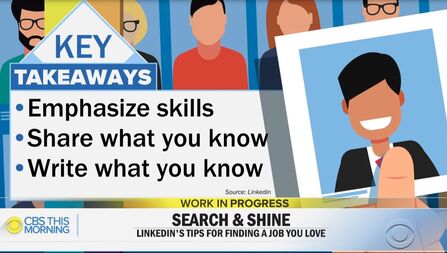 "Make sure that you are out there with your profile" "Make sure that you are out there with your profile" But being first is not the most important thing, according to Roth. He emphasized building out your online professional profile. “The real key is making sure that you are out there with your profile, that you’re sharing, that you’re talking about what you're an expert in, that you’ve got your skills listed, that you’re networking with people,” says Roth. As an experienced resume service in Los Angeles, Market-Connections takes pride in providing a large selection of package deals with multiple tools and resources to help its clients as they try to demystify the job search process. To facilitate the process for prospective clients, we offer a "Special" throughout the month of October. It consists of a Free Resume Critique for the first 10 prospective clients every Saturday morning during the month of October, on a first-come-first-served basis. This includes dates: from 9:00 a.m. to 12:00 noon.
“If you are just relying on a piece of paper, you're doing it wrong,” says Roth. “The most important thing is to be out there.” LinkedIn also published a blog post talking about the autumn job search process titled “A New Holiday to Celebrate: Fall Hiring Season.” Watch the full CBS This Morning segment here: 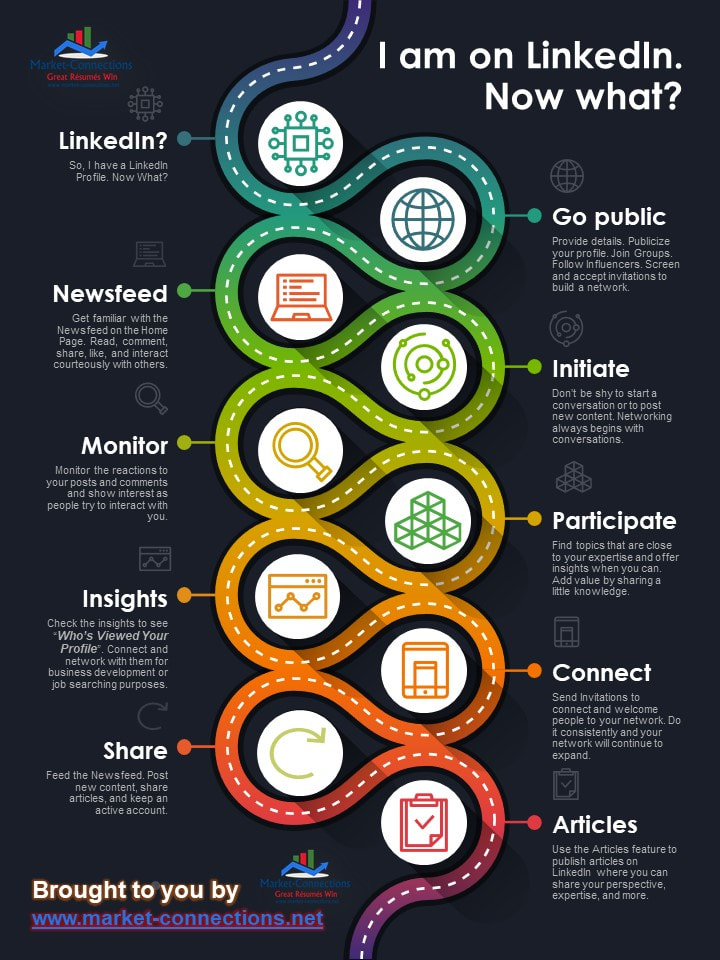
Expert advice on how to use LinkedIn
I am on LinkedIn. Now what?
Do you wonder how to use LinkedIn TO ADD VALUE to your career or job search? Do you know how to use it to lead you to results?
LinkedIn can be an excellent resource for new business development or for job searching. Following a recent blog post about LinkedIn Settings in 2019, this post is an infographic on How to use to LinkedIn for job searching or for new business development purposes. When it comes to posting your resume online, your privacy is of utmost importance. It may be a good idea to learn how to protect your privacy on LinkedIn as well. Follow the steps in the infographic above and you will discover an amazing professional platform to catapult your career and you will broaden your perspective about this great professional resource; plus, it’s free! 
Recruiter's advice on how to use LinkedIn
Expert LinkedIn Advice - Part 1 - Picture 01
Upload resume to LinkedInHow to protect your info on LinkedInNormally, when you are setting up your LinkedIn privacy settings, you’re selecting the audience you want to be able to see your LinkedIn profile. But there is one new LinkedIn setting that you will want to select to ensure that LinkedIn doesn’t share your content. When Microsoft purchased LinkedIn in 2016, the integration of the social media platform with Microsoft’s products was alluded to in the announcement. In an internal memo published on TechCrunch.com, LinkedIn CEO Jeff Weiner identified some specific areas where the two companies would work together. These included:
With the announcement of a new Microsoft Word feature called “Resume Assistant,” that integration is becoming even more apparent. When this feature is enabled, it shows what other people in similar roles say about themselves in their LinkedIn profiles, allowing users of the word processing software to incorporate that content directly into the résumé they are creating for themselves. While it has always been possible to view profiles of individuals in similar roles for inspiration when constructing your résumé, LinkedIn Headline, and profile content, this new feature allows users to directly copy content from other peoples’ LinkedIn profiles. And, in fact, it is encouraged by Microsoft/LinkedIn. Fortunately, with the introduction of this new feature, LinkedIn has also recently added a new privacy setting to allow you to omit your LinkedIn profile from showing up in Microsoft Word’s Resume Assistant. Disabling the sharing function makes it harder for others to “plagiarize” your LinkedIn content — whether you wrote it yourself, or had assistance from a professional résumé writer. One of the best things you can do to keep your content from being plagiarized is to make it uniquely about you and branding yourself so distinctively that your content couldn’t possibly be used to describe anyone else but you! Step 01: Click “Me” on Your LinkedIn Profile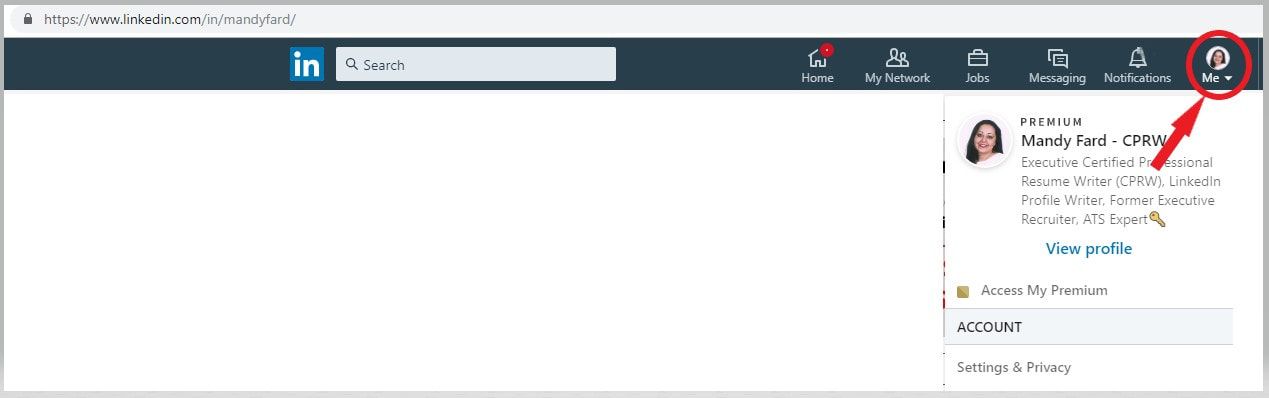 Expert LinkedIn Advice Step 01
Step 02: Find “Settings & Privacy”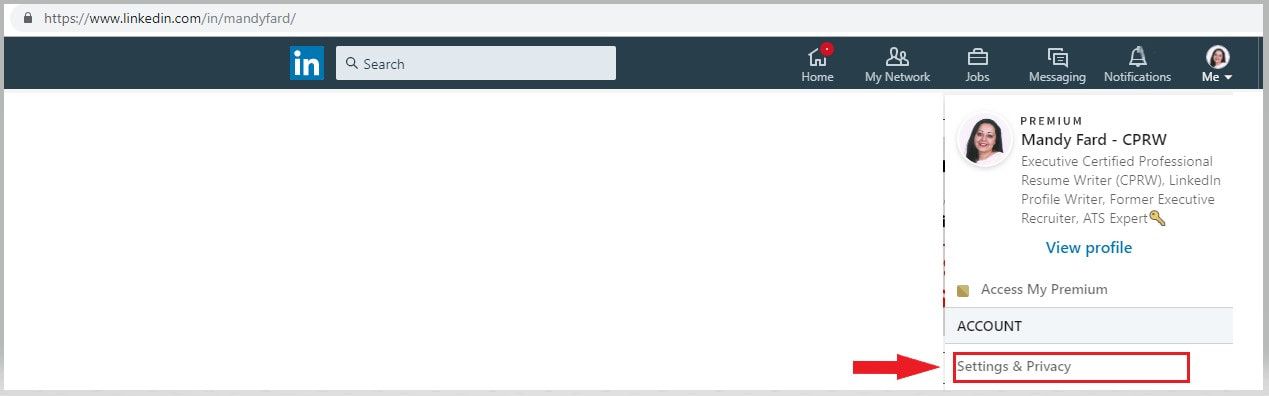 Expert LinkedIn Advice Step 02 Click “Settings & Privacy.” Step 03: Click “Privacy”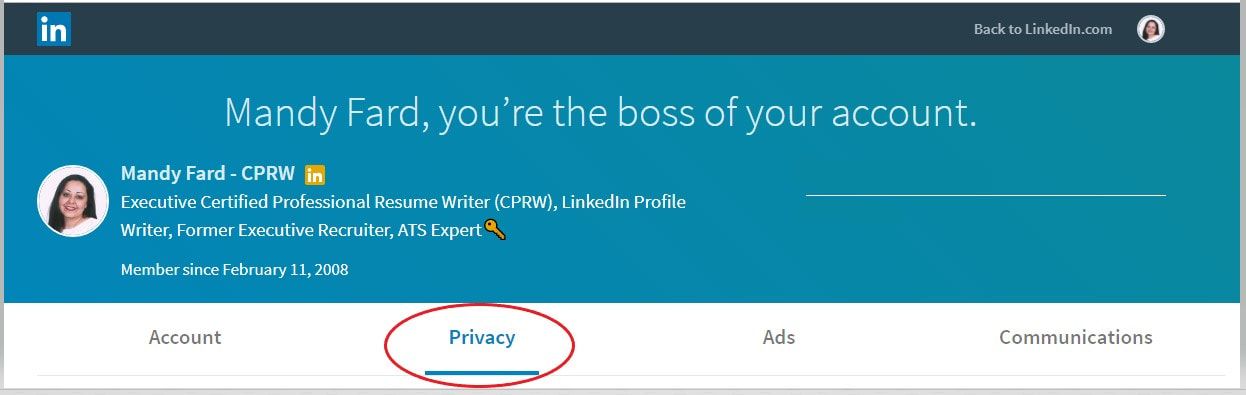 Expert LinkedIn Advice Step 03 Step 04: Scroll Down to “Data Privacy and Advertising” Section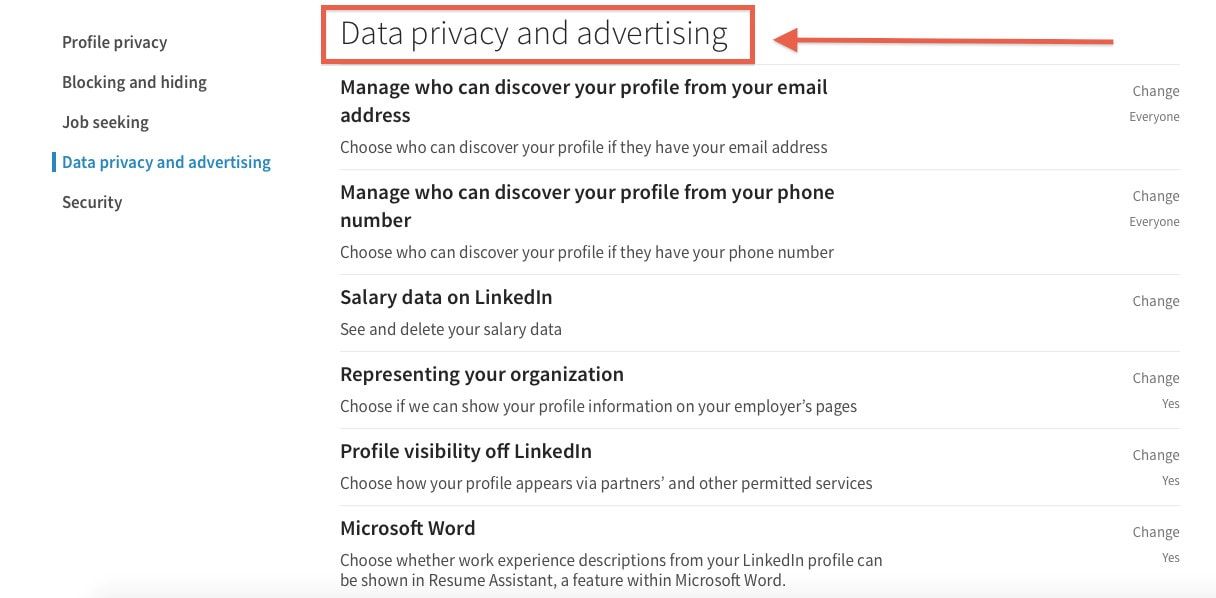 Expert LinkedIn Advice Step 04 Step 05: Click on Microsoft WordThe default setting is “Yes” — “Allow Microsoft Word to display work experience descriptions from your profile to users of Resume Assistant.”  Expert LinkedIn Advice Step 05-A 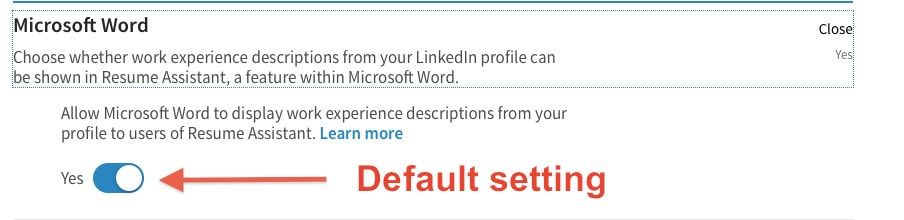 Expert LinkedIn Advice Step 05-B Step 06: Slide From the Default “Yes” to “No”Changing the setting to “No” keeps LinkedIn from sharing your descriptions with Microsoft Word users. 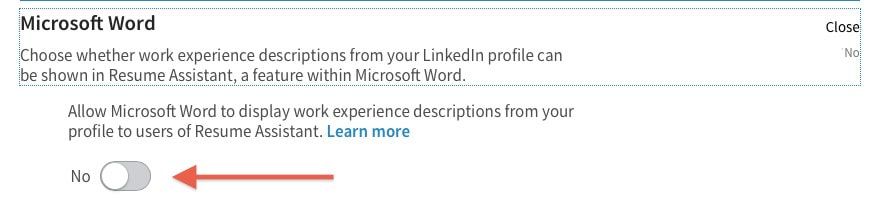 Expert LinkedIn Advice Step 06 Step 07: Resume Assistant Integration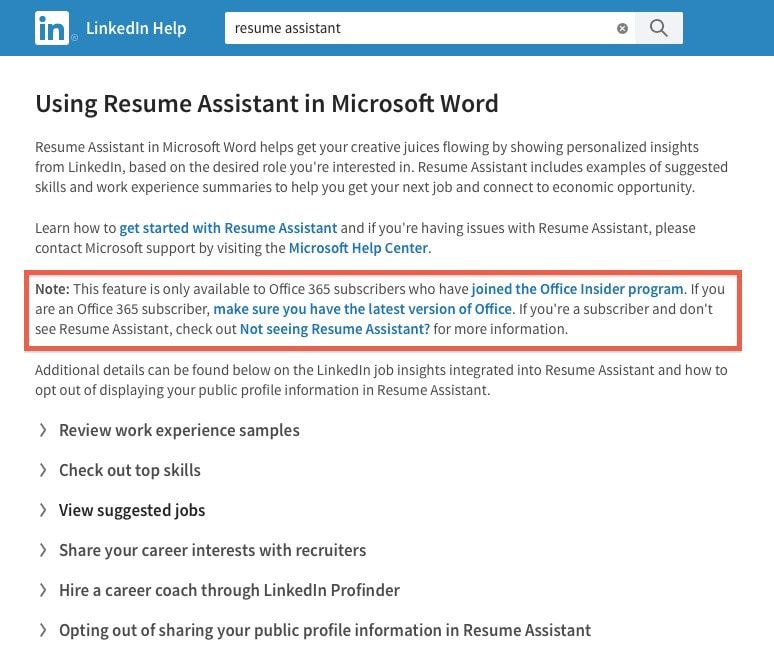 Expert LinkedIn Advice Step 07-A Here is LinkedIn’s explanation of the Resume Assistant integration. Note: Even though you have disabled the sharing of your content with the Resume Assistant, LinkedIn’s Privacy Policy and Terms of Service explicitly warn users that the information that you share can be seen, copied, and used by other members. One of the best things you can do to keep your content from being plagiarized is to make it uniquely about you — branding yourself so distinctively that your content couldn’t possibly be used to describe anyone else but you! 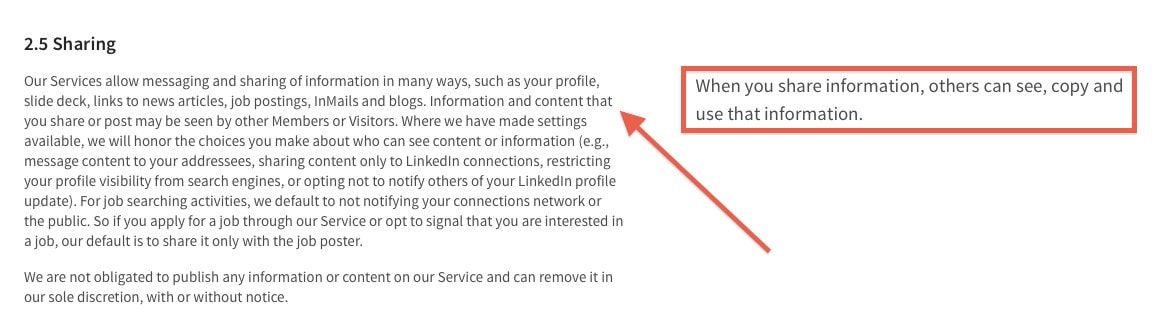 Expert LinkedIn Advice Step 07-B Step 08: Changing This Setting in the LinkedIn Mobile AppYou can also change this setting in the LinkedIn mobile app.
In the app, go to the “Settings” gear in the upper right-hand corner and click “Privacy.” Scroll down to “Microsoft Word” and display the setting. Change the slider to “No.” Resume Assistant is a new feature that is only available to Office 365 subscribers who are part of the “Office Insider” program. Resume Assistant pulls suggested skills and work experience descriptions from LinkedIn profiles when the Resume Assistant setting is set to “Yes.” 
Full Guide to LinkedIn 2019 settings for Jobseekers
How to find a job on LinkedIn“If you build it, they will come” may have been true for the Iowa corn farmer in the 1989 film “Field of Dreams,” but as a jobseeker, simply “building” a LinkedIn profile will not open the floodgates to job opportunities, nor will you have recruiters contacting you to solicit your interest in filling their open positions. About 87 percent of recruiters (92 percent of recruiters with Fortune 1000 companies) use LinkedIn as a major source for finding and vetting candidates and posting positions. For your profile to have the greatest impact on your job search, there are two things you must do:
Getting Started on LinkedIn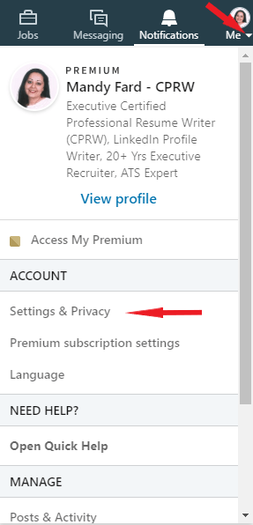 LinkedIn Settings 2019 LinkedIn Settings 2019 The first step is to locate the Settings & Privacy page in your profile; the following screenshot will show you how. Hover your mouse over the word Me and click the drop-down arrow below the thumbnail image of your profile picture. Scroll down to Settings & Privacy and click. This will open the Settings & Privacy window, with four headings across the top (Account, Privacy, Ads, and Communications). You’ll want to be sure you have the window open for Privacy. There are several categories of settings on this page, beginning with How others see your profile and network information. Scroll about two-thirds of the way down and you will find the heading for Job seeking preferences. The next screenshot shows you what this section looks like and the five areas to address. Follow along…  LinkedIn Settings 2019 Job Application Settings Let’s start by looking at the various options available to you. Click on either the first heading or the word Change as listed on the right side (not showing in this picture).  LinkedIn Settings 2019 The first few settings address how your applications will be handled when you apply for a job via LinkedIn. You can save your application answers (I recommend turning this feature on), choose to apply for jobs with 1-Click Apply (to activate this feature, you must first scroll down to Contact information and enter a phone number), and input an email and address and phone number where recruiters can reach you. The next screenshot shows you each of these options. 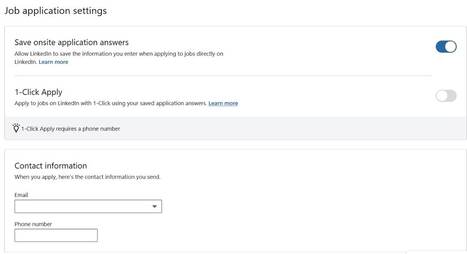 LinkedIn Settings 2019 When you apply for an Easy Apply job on LinkedIn, you can save your application information and use the information as default for future job applications, allowing you to more quickly apply for jobs. You can also opt in to applying for jobs with 1-Click Apply based on this saved application information. When you apply to jobs with 1-Click Apply, LinkedIn will send the job poster your full LinkedIn profile in addition to the following saved application answers:
You can preview your application and change your answers before applying to any job. Scroll down further and you will have the option of uploading a resume. You can have as many as four different versions of your resume uploaded and saved in your profile. The next screenshot shows you how. Note: Resumes you have uploaded to your profile are not visible to other LinkedIn users. They are only stored in your account and available for you to attach to applications. 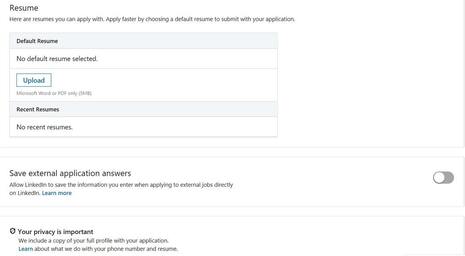 LinkedIn Settings 2019
Important: The ability to reuse recently uploaded resumes is currently only available on LinkedIn.com and the LinkedIn Mobile App. The feature is not currently available on the LinkedIn Job Search App. Resume Requirements:
Letting Recruiters Know You're OpenOnce you have completed all your application settings, go back to the Privacy tab and click on the second set of options, as shown in the next screenshot. 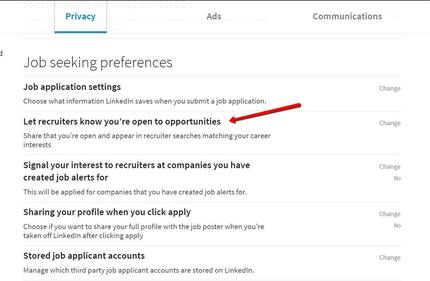 LinkedIn Settings 2019 Your options are a simple Yes or No. Click either on the heading or the word Change and toggle the radio button to Yes. 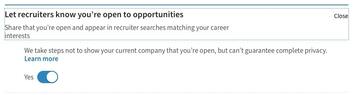 LinkedIn Settings 2019 You will receive an email notification from LinkedIn confirming this change. (And you will receive another email from LinkedIn if you change your setting to “No.”) Important: To protect your privacy, LinkedIn takes steps to keep users of LinkedIn Recruiter who work at your company — as well as related companies — from seeing the Career Interests that you share. However, LinkedIn notes that they “can’t guarantee complete privacy.” Creating Job Alerts on LinkedIn Job alerts serve two functions: 1) They let recruiters know that you are interested in working for their company; and 2) They push newly-posted job opportunities to your inbox. Going back to your Privacy settings, click on the third heading under Job seeking preferences, as illustrated in the next screenshot. 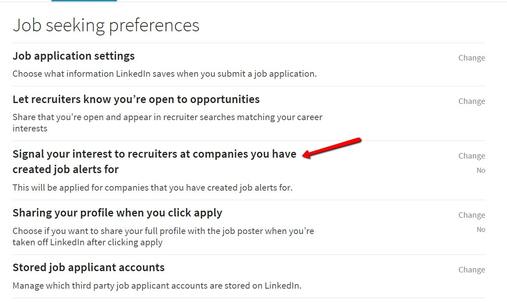 LinkedIn Settings 2019 As with the previous section, your options are a simple Yes or No. Click either on the heading or the word Change and toggle the radio button to Yes. 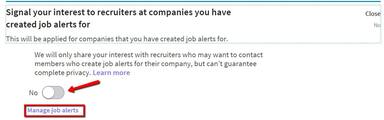 LinkedIn Settings 2019 As a savvy jobseeker, you should have already created a list of companies you would like to target in your job search. (The recommended minimum number of companies to have on your list is 20). There is a document included at the end of this guide for creating this list and tracking your activity. In November 2018, LinkedIn rolled out a new feature that enables users to set up job alerts on a Company Page. Once you’ve set up a job alert, you’ll be notified of new jobs that match your skills through the Notifications tab. You can also share your interests with recruiters of companies you are targeting. Your details will only be shared with recruiters who want to contact members who have created job alerts specifically for their company. To set up job alerts for a specific company: 1. Search for the company you’re interested in on the LinkedIn homepage. i.e.: The Coca-Cola Company. 2. On the Company Page, click the Jobs tab. 3. Click Create Job Alert to set up alerts for when the company posts jobs that match your skills. Once you create a job alert, you can also let recruiters know that you’ve created job alerts for their company by switching the toggle to On. To stop notifying your interests to recruiters, switch the toggle to Off. Your changes will be saved automatically. 4. You can view and manage the list of all companies that you’ve created job alerts for by clicking Manage Job Alerts on the Jobs page. You can also manage your job alerts from the At companies you’ve saved job alerts for section on the Jobs page. The following screenshots illustrate how to locate a company page and create a job alert. From the Home page of your profile, click in the Search box, scroll down to Content, and from the drop-down list, click on Companies. This will take you to the Companies search screen. Or you can just type a company name in the Search box. 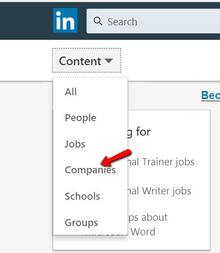 LinkedIn Settings 2019 Type in the name of a company on your target list and click to go to the company page. The following screenshot is taken from IBM’s company page. On the left drop-down menu, click on Jobs and then click on the text box Create job alert. 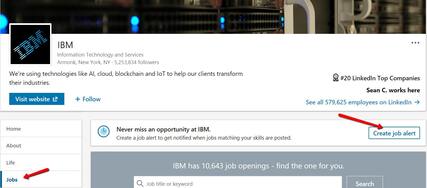 LinkedIn Settings 2019 You’ll also want to toggle the radio button to On, as illustrated in the next screenshot.  LinkedIn Settings 2019 Sharing Your Profile When You Apply Going back to your Privacy settings, click on the fourth heading under Job seeking preferences, as illustrated in the next screenshot. 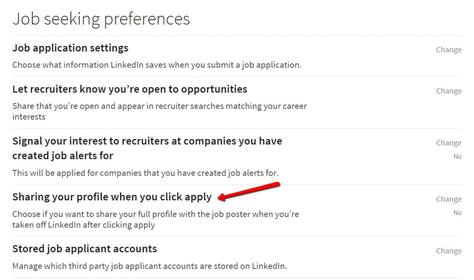 LinkedIn Settings 2019 As with the previous section, your options are a simple Yes or No. Click either on the heading or the word Change and toggle the radio button to Yes. 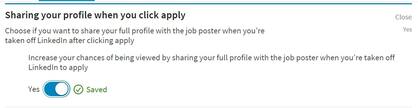 LinkedIn Settings 2019 Managing Your Saved Job Application Information Third-party job applicant accounts may be stored on LinkedIn after being created or added by you while applying to jobs through LinkedIn. You would have elected to activate this feature when you modified your Job application settings, as described at the beginning of this guide. The following screenshot is a reminder of where you made this change: 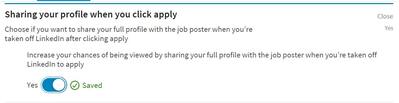 LinkedIn Settings 2019 To view and manage your stored job applicant accounts, go back to your Privacy settings and click on the fifth heading under Job seeking preferences, as illustrated in the next screenshot.  LinkedIn Settings 2019 By saving your application when applying to a company, you can reuse your uploaded resumes and other job application information for future applications to that company. Saved answers can only be used when applying via the Apply with LinkedIn on partner sites. You can delete the history of the account creation from LinkedIn under Settings & Privacy. Once a stored job applicant account is removed, LinkedIn won’t auto-populate or recognize that you have an account if you apply to a job within that third-party job applicant account in the future. To fully remove your information from the third-party job applicant account owner, you will need to contact the third party directly. Important: This information is only stored for third-party applications that require a created account. You can share your career goals — including the types of companies and roles you are most interested in — with recruiters on LinkedIn who may have opportunities that match your interests and background. Once you opt to share your career goals with recruiters, users of LinkedIn’s Recruiter product will be able to find you based on your shared career interests when they are searching for profiles. This is an extremely valuable section to complete, whether you are an active or passive jobseeker. Remember, to protect your privacy, LinkedIn has taken steps to keep LinkedIn Recruiter users who work at your company, as well as related companies, from seeing the career interests you share. (However, remember that LinkedIn says this is not a foolproof method, so consider that before proceeding.) Note: You can share your career interests with recruiters for a period of six months (180 days), after which it will automatically be turned off. You will receive an email notifying you that you’re no longer sharing your career interests. However, you can continue sharing by manually changing the settings. From the Home screen of your profile, click on Jobs and then on Career Interests, as illustrated in the next screenshot. How To Let Recruiters Know Your Career InterestsYou can share your career goals — including the types of companies and roles you are most interested in — with recruiters on LinkedIn who may have opportunities that match your interests and background. Once you opt to share your career goals with recruiters, users of LinkedIn’s Recruiter product will be able to find you based on your shared career interests when they are searching for profiles. This is an extremely valuable section to complete, whether you are an active or passive jobseeker. Remember, to protect your privacy, LinkedIn has taken steps to keep LinkedIn Recruiter users who work at your company, as well as related companies, from seeing the career interests you share. (However, remember that LinkedIn says this is not a foolproof method, so consider that before proceeding.) Note: You can share your career interests with recruiters for a period of six months (180 days), after which it will automatically be turned off. You will receive an email notifying you that you’re no longer sharing your career interests. However, you can continue sharing by manually changing the settings. From the Home screen of your profile, click on Jobs and then on Career Interests, as illustrated in the next screenshot. 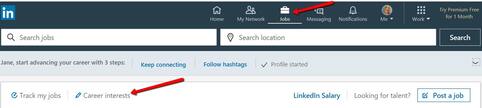 LinkedIn Settings 2019 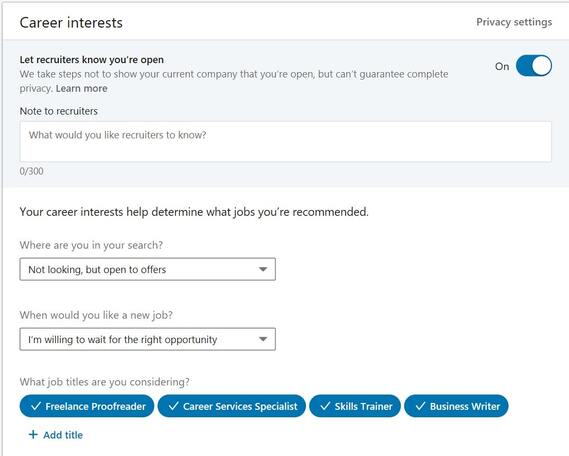 LinkedIn Settings 2019 How To Signal Recruiters on LinkedIn Privately signal to recruiters you are open to new job opportunities. The next few screenshots illustrate the various settings. When you toggle On the setting to Let recruiters know you’re open, it will automatically turn off after 90 days. You will need to turn it back on if you are still searching. The Note to recruiters text box is where you can key in something specific about your search, such as your willingness to travel, that you are changing careers, or that you are in the market because of a company-wide downsizing. You are limited to 300 characters. In the next two text boxes, choose from the drop-down arrow options to specify your Status and your Start date. Below that, you can enter a number of job titles for which you’d like to be considered. Note: When you start typing, a job title that is in LinkedIn’s database will pop up and you can click on it to add it. If you try to add a title that is not in the database, an error message that reads Invalid input will appear. Next, you can indicate where you would like your next job to be located, if you are open to working remotely, and what types of jobs you are open to. 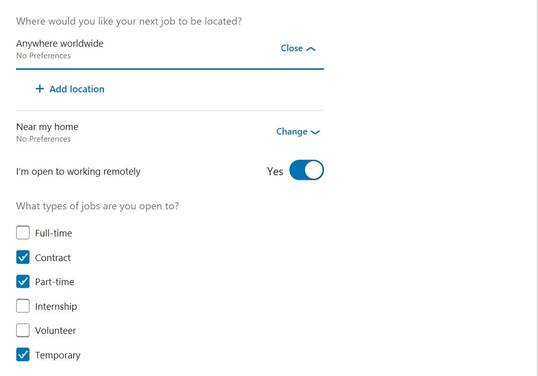 LinkedIn Settings 2019 In the final two settings you can let the recruiter know what industries you prefer and the size of the company you would like to work for. Note: As with job titles, you must choose from the list of 148 industries that are included in LinkedIn’s database. There is no limit to how many industries you can add. Refer to the Profile Industry Choices table that is included with this guide. Additional Tips for Jobseekers LinkedIn’s artificial intelligence (AI) tracks when you are on LinkedIn and what you are doing. Company recruiters can actually “see” which candidates have taken an interest in their company — not only creating Job alerts, but also by who is following their company, what content they are viewing and sharing, and the number of connections they have within the company. The next screenshot of the IBM company page shows you where the links are found to follow a company and locate people who work there. You’ll also see a feed of the company’s recent posts. 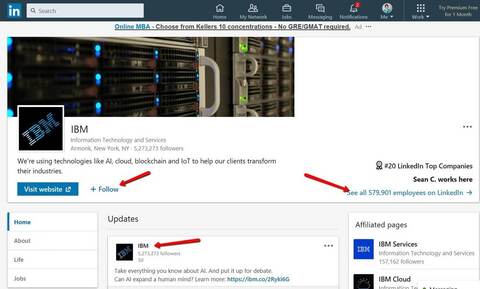 LinkedIn Settings 2019 While on the company page, another area you may want to look at is found on the About page. The next screenshot is also taken from the IBM company page. By clicking on the About link to the left of the screen, the Overview will be revealed. If you scroll to the bottom of the page details, you will find a section labeled as Specialties (see the section encased in a red border in the screenshot). Having the right keywords throughout your LinkedIn profile will increase your chances of being found in a Recruiter search. When possible, work a company’s Specialties keywords into your profile, resume, and/or cover letter when applying to that company. 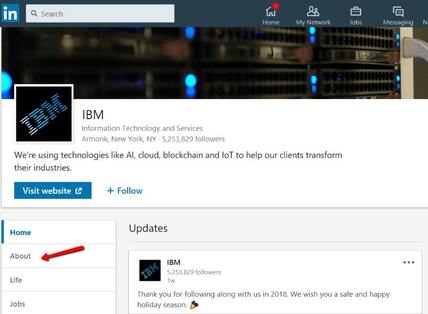 LinkedIn Settings 2019 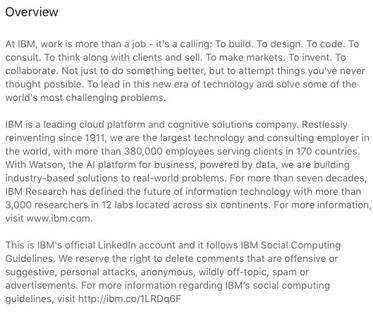 LinkedIn Settings 2019 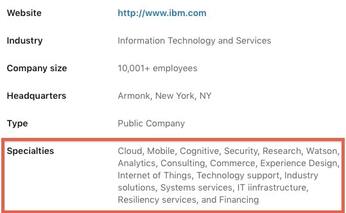 LinkedIn Settings 2019 Job Search Target CompaniesUse this document to create a list of companies you are targeting in your search and place an “X” in each column once you have completed the task. Note: Some companies (particularly smaller companies) may not have a LinkedIn page. When you are logged in to a company page, click the relevant links to follow, create job alerts, and find profiles for people on LinkedIn who currently work at the company. Ways to engage with the company include reading (and possibly sharing) their updates.
LinkedIn Industry Choices
LinkedIn logo and profile button
Find a job on LinkedInHow to use LinkedInLinkedIn is the top professional networking website for jobseekers. As Reid Hoffman, co-Founder of LinkedIn told Charlie Rose in an interview: "Post a full profile and get connected to the people you trust. Because if you're connected to those people and you posted a profile, then when other people are searching for people, they might find you." LinkedIn has more than 400 million registered users as of 2017. The site adds two new members every second, and more than 200 million people visit the site each month. With so many members, the rate at which your network expands on LinkedIn can be truly amazing. A hundred strategic contacts could mean access to millions of people in a short amount of time. You'd have to attend dozens (or hundreds) of in-person networking events to equal the reach you can get on LinkedIn. LinkedIn allows you to leverage the power of your network (the people you know, and the people those people know) to help you connect to the person (or people) who are in a position to offer you a job. Reid Hoffman, co-founder of LinkedIn, put it this way: "LinkedIn's core value proposition is to connect talent with opportunity at massive scale." Executives from all Fortune 500 companies are on LinkedIn. Recruiters from every discipline and industry are on LinkedIn. More than four million companies have profile pages on LinkedIn. But author Guy Kawasaki puts it best in his book: "I could make the case that Facebook is for show, and LinkedIn is for dough." How to find a job on LinkedIn Once upon a time, attending networking mixers, industry events, and Chamber of Commerce meetings were the best way to make new connections and build business relationships. Now, these activities have moved online within the LinkedIn community. Much like networking in person, professionals interact on LinkedIn with the explicit intention of making business connections. With LinkedIn, you get all the benefits of networking in person, with less of the hassle. Instead of going from business lunch to business lunch hoping to meet people, LinkedIn settings provide a platform for you to specifically search and research individuals who you know will directly add value to your job search. Employers and recruiters use LinkedIn to locate both active jobseekers and those who aren't necessarily looking (passive candidates). They also use LinkedIn to vet job candidates before making an interview invitation or extending a job offer. LinkedIn also allows candidates to create an online portfolio of their accomplishments, has a strong visual emphasis, facilitating embedded video, links to content posts elsewhere on the Internet, and the ability to create highly shareable, long-form content in the form of LinkedIn's "Publishing feature". It's a good idea to invest some time in learning how to use LinkedIn. LinkedIn allows you to identify, research, contact, follow-up, engage, and maintain your contacts in one place. Its ability to facilitate business networking is unmatched by any other social network. Essentially, your LinkedIn profile is a résumé, business card, and elevator speech all rolled up into one. However, your LinkedIn profile is not your résumé. LinkedIn is a personal branding page. You need both a résumé and a LinkedIn profile, and they should be in sync with one another, but not be exact copies. The information on your résumé should match your profile (in terms of positions you've held, your educational credentials, etc.), but the content (the wording) you include on your LinkedIn profile must be significantly different than what is included on your résumé. AuthorMandy Fard is a Certified Professional Resume Writer (CPRW, CMRW) and Recruiter with decades of experience in assisting job seekers, working directly with employers in multiple industries, and writing proven-effective resumes. |

Award-winning resume writing services
Categories
All
powered by Surfing Waves
AuthorMandy Fard is a Certified Professional Resume Writer (CPRW, CMRW) and Recruiter with decades of experience in assisting job seekers, working directly with employers in multiple industries, and writing proven-effective resumes.
Archives
December 2023


|

-
Greater Los Angeles
and Kern County
-
mandy@market-connections.net
.
 RSS Feed